Recording and catch-up

Record what you watch. Schedule what you'll miss.

Press record on the channel you're watching, or pick a program in the guide and let Theia record it for you, once or every episode.

Premium  Recording is part of Premium. Watching, rewind and catch-up are free.

Recordings

Recording now

Ironwood Bears at Rivertown RapidsSports 1 HD

Upcoming

The Late BriefingNews Live · tonight 8:00 PM

Every episode

Kitchen MakeoverFood & Home · every episode on this channel

Recorded

Rainforest CanopyNature HD · 1 h 00 min

Made-up shows and channels from Theia's demo source.

Premium

One press, and it's saved.

While a live channel plays, press the record button in the player. Press it again to stop, and Recording saved shows when the file is written.

It records the stream you're already watching, so it uses no extra connection. Leave the player and it keeps going while the channel does.
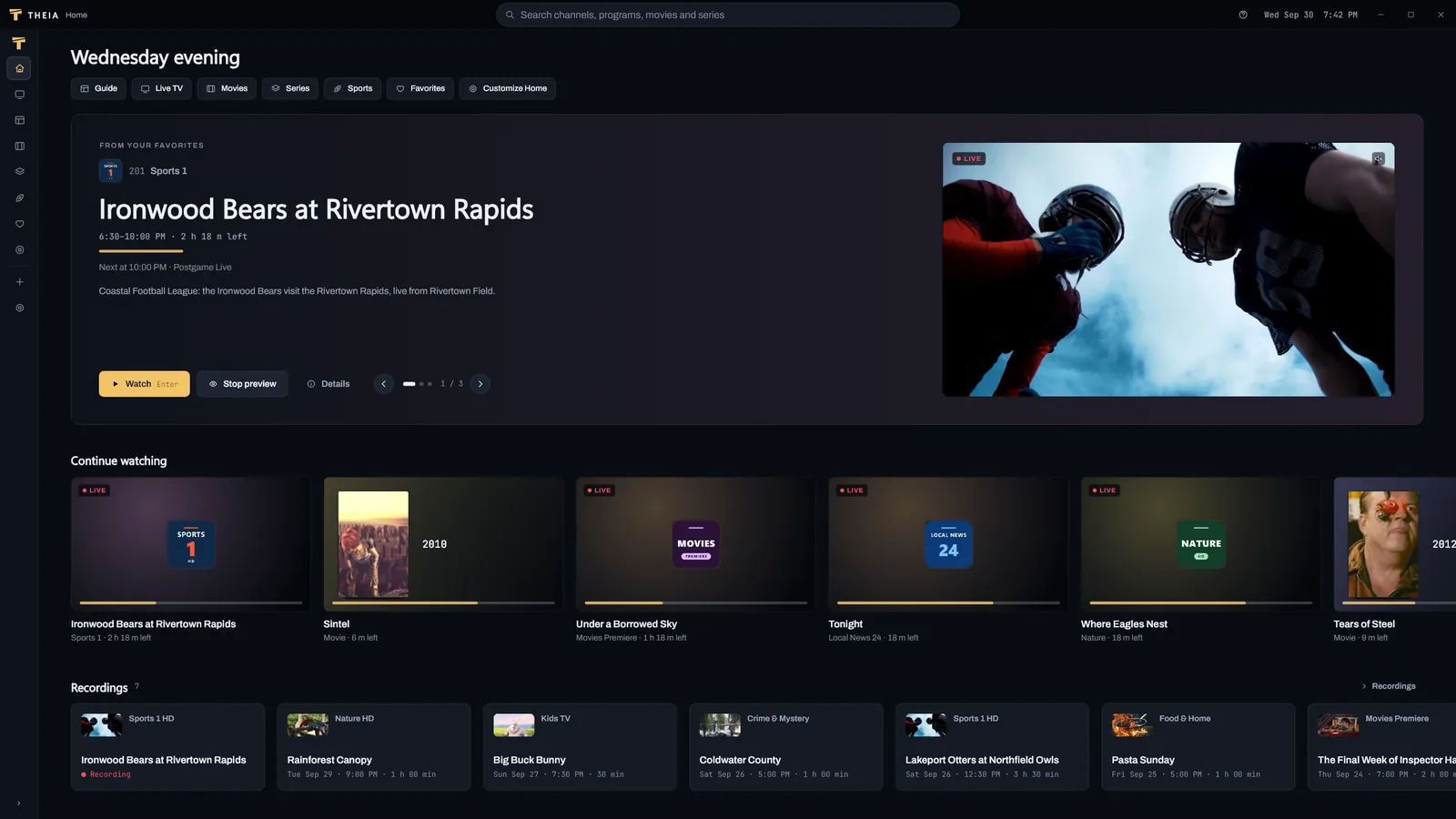
Theia's Home screen: Continue watching with live channels and movies, and a Recordings row with one recording in progress and several saved.

Premium

Pick it in the guide.

Click a program that's on now or still to come, then click Record in its details. A small ring marks it in the guide.

Turn on Every episode on this channel and later episodes with the same title on the same channel come along too.

Record

The Late BriefingNews Live · tonight 8:00 PM

Start early1 minEnd late3 min

Every episode on this channel

The Record dialog, with its default times.

It says when one didn't happen.

If a scheduled recording fails or is skipped, a card in the corner of the window says why, and the Recordings screen keeps the reason. It's also the only place a recording missed while Theia was closed shows up.

If your streams are all busy when a recording is about to start, Theia asks Stop watching to record? and lets you choose.

Missed, Theia was closed
Stop watching to record?Stop watchingSkip
All of the source's streams were in use

Messages from Theia's recording cards.

Missed it already? Some channels keep it.

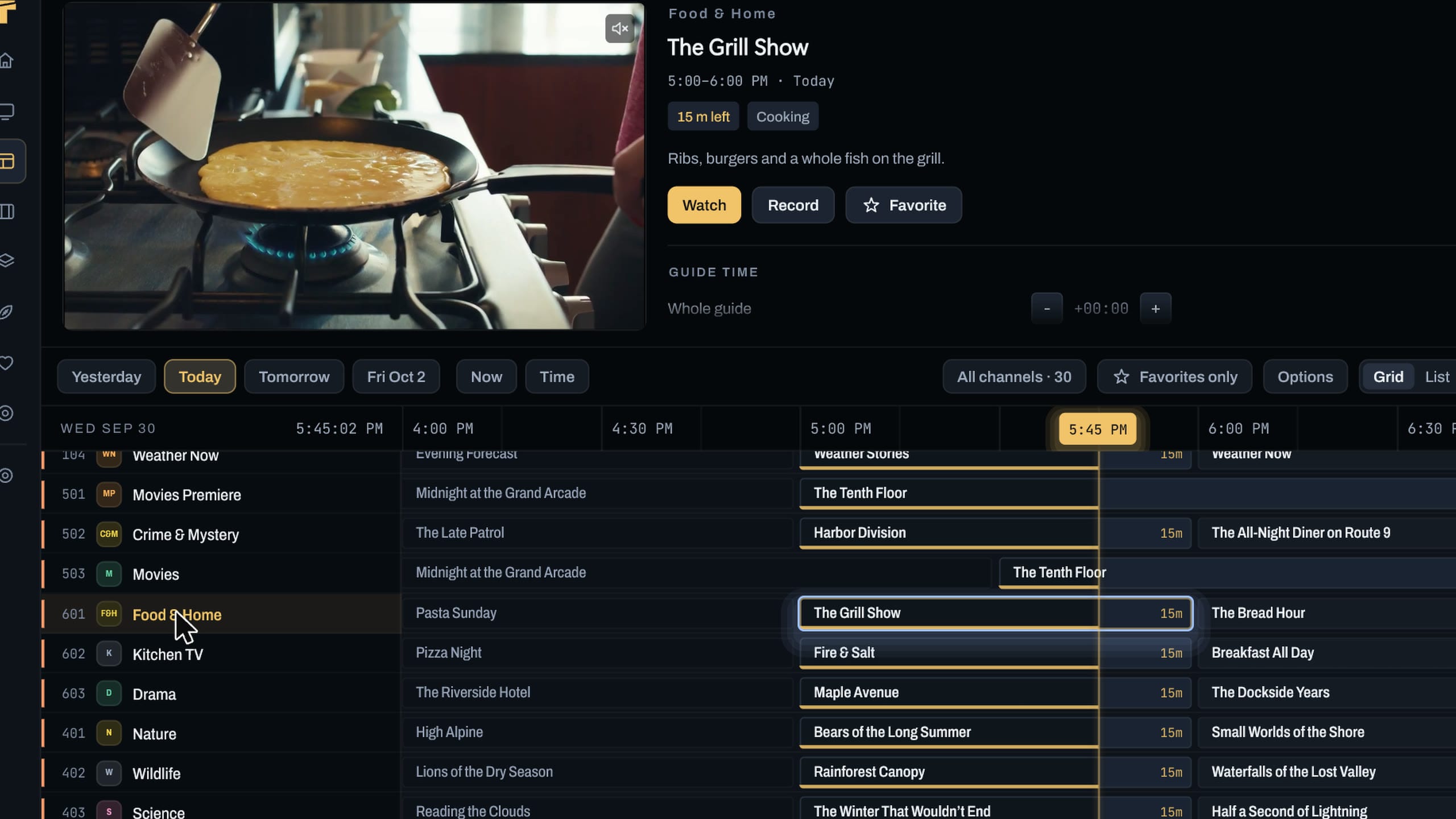
Where your provider offers catch-up, the channel carries a small ring in the guide, and a past program plays from the start. It's free.

Catch-up is your provider's copy, so it can't be recorded.

The guide in Theia with a grid of demo channels, the days row above it and the current time marked.

Make the most of it

Set it up once. Check it before the show.

  1. Keep Theia open

    A scheduled recording runs only while Theia is open. If it was closed, the recording shows as Missed, Theia was closed.

  2. Count your connections

    A scheduled recording opens its own stream, so it uses one of your provider’s connections. The Record dialog warns you when it would use every one you have.

  3. Start early, end late

    Start early and End late add a few minutes either side, 1 and 3 by default, and you can change them in Settings > Recording.

  4. Choose where files go

    Choose folder under Recordings folder in Settings > Recording moves new recordings, and Open folder takes you there.

  5. Leave room

    A recording needs 1 GB free to start and stops if free space drops below 200 MB.

  6. On a TV, stay on Theia

    Pressing Home, opening another app or the screensaver stops a recording started from the player. Keep Theia on screen while it records.

Questions

Is recording part of Premium?

Yes. Watching, live rewind and catch-up are free. See what Premium adds.

Can I record movies, episodes or catch-up?

No. Recording is for live channels. Movies, episodes and catch-up can’t be recorded.

Does it record when Theia is closed?

No. Theia has to be open when a scheduled recording runs.

What do the files look like?

Each recording is a .ts file named after the show, the channel and the start time. On a computer they go in a folder called Theia inside your Videos folder.

Pick the program. Theia does the rest.